
SoulPvEServerClientModPack1
Все клиентские моды для сервера Soul PvE.
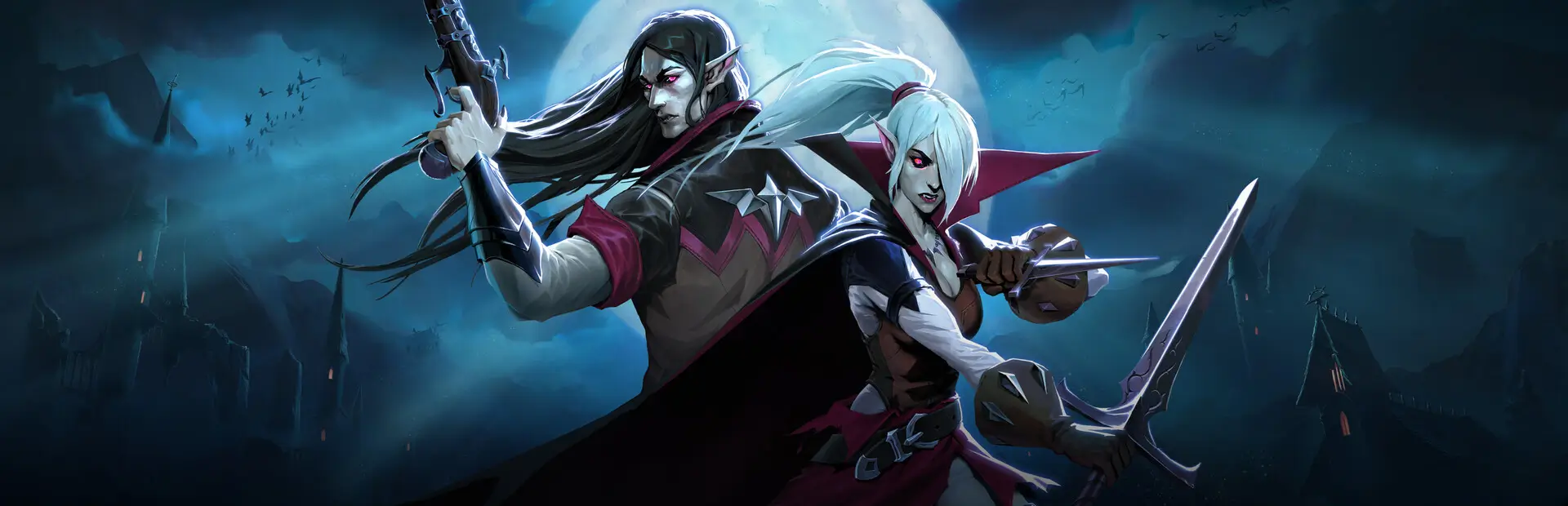
 Мод для V Rising
от panthernet
UI Buddy позволяет настраивать расширенные элементы UI для V Rising
UIBuddy — мод для V Rising (Ви Райзинг) от автора panthernet. UI Buddy позволяет настраивать расширенные элементы UI для V Rising
Его скачали 2,3 тыс. раз: это 99-е место среди модов V Rising в нашем каталоге, редкость — «редкий» (топ-50% по скачиваниям). Мод давно не обновлялся — проверьте совместимость с текущей версией игры, актуальная версия — 0.4.0.
Для работы ему нужны: BepInExPack V Rising.
Автор отметил совместимость с обновлениями игры: Oakveil.
8 шт · нажмите, чтобы открыть
Текст автора на языке оригинала
Buddy UI allow advanced UI elements customization for V Rising. Currently it works with Mouse+Keyboard mode only. It is represented by two control windows.
BepInEx folder from zip archive and replace BepInEx folder in VRising game root folderPageDown key to show/hide control panelsThe main windows allows you to configure general behavior options for the mod and also displays information about selected UI element, providing means to control its position and state. Second window displays a list of configurable UI elements available for modification on the current screen. Configurable UI elements or PANELS are marked with grayed out overlay rectangles.
You can select element by clicking a list item or clicking the overlay panel if Select panels with mouse option is enabled on the main panel. Once PANEL is selected it will display yellow outline and also will be marked in a list. Main panel will display the Name of currently selected panel and available control elements will apply modifications to the selected PANEL. When panel has an ouline you can click and drag it to a new position. You can also change PANEL Visibility by clicking toggle button in the list on the left of the desired panel name.
Main panel provide input controls to change selected panel scale and rotation values. It also provide following options:
Show Panels - will show/hide overlay panels for UI elementsSelect panels with mouse - will enable/disable the ability to select panels with mouse which can come in handy in some cases when several panels occupy one space.Reload elements button - will try to reload all elements and fill the list with the missing ones. It is a rare case but still happens, for example, on new character start, when some UI elements will become available a bit later.Some list element names might start with (?) or (!!) symbols which signify that these elements must be treated carefully.
Some controls like Chat Window have quirky structure so we use Detached panels to control their position. Detached panels are rendered as a separate gray panels that are always visible and can be placed anywhere, moving this panel will move corresponding UI element even if it is currently invisible.
OMG! UI IS MESSED UP! WHAT DO?!!! Don't worry. In case you can't fix the UI using the provided tools you can always delete config file located at V Rising\BepInEx\config\panthernet.UIBuddy.cfg. Or you can edit/remove individual panel settings from Panels config section if you confident in what you're doing.
В r2modman ставится автоматически
1 в каталоге
Все клиентские моды для сервера Soul PvE.
Файл скачивается с официального сервера Thunderstore, без перезаливов и сторонних установщиков
Подробная инструкция для V RisingВставьте значок в описание на Thunderstore, в README или в Discord — русскоязычные игроки сразу попадут на страницу с переводом и инструкцией.

[](https://modka.app/v-rising/panthernet-uibuddy/)<a href="https://modka.app/v-rising/panthernet-uibuddy/"><img src="https://modka.app/badge.png" alt="Описание на русском — Модка" height="44"></a>[url=https://modka.app/v-rising/panthernet-uibuddy/]Описание на русском — Модка[/url]Скачайте менеджер модов r2modman (или Gale) и выберите в нём игру V Rising. Создайте профиль — так моды не смешаются с чистой версией игры. Найдите «UIBuddy» во вкладке Online и нажмите Download — BepInEx и все зависимости подтянутся сами. Нажмите «Start modded» — игра запустится с модами. Чтобы сыграть без модов, запустите игру как обычно из Steam — r2modman не трогает чистую версию игры.
Файл скачивается с официального сервера Thunderstore, куда его загрузил panthernet. Мы не перезаливаем и не изменяем моды.
Установите вместе с ним: BepInExPack V Rising. В менеджере модов зависимости подтягиваются автоматически.
19 мая 2025, актуальная версия — 0.4.0. Это больше года назад: перед установкой проверьте, работает ли мод на текущей версии игры.

Оптимизированные улучшения камеры и дополнительные функции!

Показывает общее количество товара в вашем инвентаре при сборе ресурсов

Пользовательский интерфейс для управления BloodCraft familiars

Упростите игру на сервере Pve Bloodcraft
Унифицированный пользовательский интерфейс для V Rising серверных модов (Bloodcraft, Beelzebub, Uriel, Faust, Nyarlathotep, Kindred) плюс отдельное окно чата. Команды, статистика и отчеты как кнопки, формы и наложения. (перенаправлено с «BloodcraftHub»)

Полностью замените стандартные курсоры / кроссшеры своими!