ExtraCityEdit
Особенности: Street & District edit, Advanced Building Edit,!!! Используйте 1080p!!!, если вы используете DENSITY, установите самый низкий уровень для очень низкого и самого высокого!!!
 Мод для Shadows of Doubt
от GTFOModding
Внутриигровой интерфейс для изучения, отладки и модификации игр Unity.
UnityExplorer IL2CPP — мод для Shadows of Doubt (Шэдоус оф Даут) от автора GTFOModding. Внутриигровой интерфейс для изучения, отладки и модификации игр Unity.
Его скачали 20,2 тыс. раз: это 22-е место среди модов Shadows of Doubt в нашем каталоге, редкость — «эпический» (топ-20% по скачиваниям). Мод давно не обновлялся — проверьте совместимость с текущей версией игры, актуальная версия — 4.9.1.
Дополнительных модов для работы не требует.
Текст автора на языке оригинала
🔍 An in-game UI for exploring, debugging and modifying Unity games. ✔️ Supports most Unity versions from 5.2 to 2021+ (IL2CPP and Mono).
BepInEx:
UnityExplorer.BIE.[version].dll file and the UniverseLib.[version].dll file and put them in BepInEx\plugins\.MelonLoader:
UnityExplorer.ML.[version].dll file and put it in the Mods\ folder created by MelonLoader.UniverseLib.[version].dll file can put it in the UserLibs/ folder created by MelonLoader.UnityEngine.Object, with optional filtersThe inspector is used to see detailed information on objects of any type and manipulate their values, as well as to inspect C# Classes with static reflection.
[G]) is used to inspect a GameObject, and to see and manipulate its Transform and Components.[R] and [S]) are used for everything else▼ button to expand certain values such as strings, enums, lists, dictionaries, some structs, etcTexture2D, Image, Sprite and Material objects, there is a View Texture` button at the top of the inspector which lets you view the Texture(s) and save them as a PNG file.AudioClip objects there is a Show Player button which opens an audio player widget. For clips which are loaded as DecompressOnLoad, there is also a button to save them to a .wav file.Mono.CSharp.Evaluator to define temporary classes or run immediate REPL code.startup.cs and placing it in the sinai-dev-UnityExplorer\Scripts\ folder (this folder will be created where you placed the DLL file).Prefix (which can return bool or void), Postfix, Finalizer (which can return Exception or void), and Transpiler (which must return IEnumerable). You can define multiple patches if you wish.null)Copy(obj) and Paste() for accessing the ClipboardBepInEx\config\com.sinai.unityexplorer.cfgUserData\MelonPreferences.cfg{DLL_location}\sinai-dev-UnityExplorer\config.cfgОписание длинное — здесь его начало. Читать целиком на странице автора
Файл скачивается с официального сервера Thunderstore, без перезаливов и сторонних установщиков
Подробная инструкция для Shadows of DoubtВставьте значок в описание на Thunderstore, в README или в Discord — русскоязычные игроки сразу попадут на страницу с переводом и инструкцией.

[](https://modka.app/shadows-of-doubt/gtfomodding-unityexplorer-il2cpp/)<a href="https://modka.app/shadows-of-doubt/gtfomodding-unityexplorer-il2cpp/"><img src="https://modka.app/badge.png" alt="Описание на русском — Модка" height="44"></a>[url=https://modka.app/shadows-of-doubt/gtfomodding-unityexplorer-il2cpp/]Описание на русском — Модка[/url]Скачайте менеджер модов r2modman (или Gale) и выберите в нём игру Shadows of Doubt. Создайте профиль — так моды не смешаются с чистой версией игры. Найдите «UnityExplorer IL2CPP» во вкладке Online и нажмите Download — BepInEx и все зависимости подтянутся сами. Нажмите «Start modded» — игра запустится с модами. Чтобы сыграть без модов, запустите игру как обычно из Steam — r2modman не трогает чистую версию игры.
Файл скачивается с официального сервера Thunderstore, куда его загрузил GTFOModding. Мы не перезаливаем и не изменяем моды.
2 января 2023, актуальная версия — 4.9.1. Это больше года назад: перед установкой проверьте, работает ли мод на текущей версии игры.
Особенности: Street & District edit, Advanced Building Edit,!!! Используйте 1080p!!!, если вы используете DENSITY, установите самый низкий уровень для очень низкого и самого высокого!!!
Минимизация доказательств Windows с Z
Игровые утилиты для Shadows of Doubt. Откройте пользовательский интерфейс с помощью F6 (по умолчанию), горячий ключ может быть изменен во вкладке настроек пользовательского интерфейса или в файле конфигурации. Требуется BepInEx 6 IL2CPP.

Заключайте контракты с Синдикатом как наемный убийца. Убейте почти любого гражданина с оружием, ядом или инсценированной аварией; избейте следствие - свидетелей, камеры, отпечатки, судмедэксперты, ордера, охоту - и поднимитесь в подземный мир. Бета.

Размещайте удерживаемые предметы именно там, где вы хотите, с помощью управления движением и поворотом, возвращайте их на место вместо того, чтобы бросать их, фиксируйте подвесные потолочные огни и добавляйте большой набор дополнительных предметов в меню декора, включая рабочие защитные приспособления.
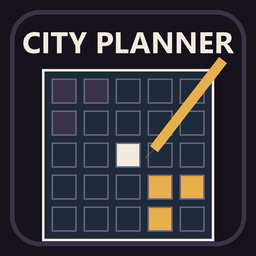
Создайте свой собственный город в планировщике, который отправит его прямо в игру. Покрасьте районы и позвольте игре заполнить все остальное, или выберите каждое здание, облицовку и улицу самостоятельно. Он также загружает городские пакеты, такие как Margin City.